





What Exactly is an n8n Node?
You can think of n8n nodes as individual workers on an assembly line. When connected, they pass data from left to right seamlessly. This visual approach makes n8n for beginners highly accessible and intuitive.
How to Use Nodes in Workflows
Using these tools is very straightforward. Here is how you build out your sequence:
Place and Connect: Drag an item onto your canvas and connect it to another. Each step has an input side to receive data and an output side to pass it along.
Configure: Once placed, you open the settings menu to configure its unique parameters. You might add API keys, map specific data fields, or write custom mathematical logic.
Test: After configuring the settings, you test the step immediately to ensure data flows correctly.
Popular Component Categories
Before diving deeper, it helps to understand the main types of components you will use daily:
Triggers: These initiate workflows automatically based on events.
Actions: These perform targeted tasks in external applications.
Logic: These route data and make intelligent decisions.
Categories: Core vs Community
Understanding the difference between built-in tools and third-party additions is crucial for stability.
The n8n core nodes are officially maintained by the core platform development team. They are thoroughly tested, highly secure, and guaranteed to work flawlessly with every major platform update.
On the other hand, n8n community nodes are created by independent developers globally. These third-party modules fill specific gaps for niche software integrations that the official team has not built yet. You can easily install them via your settings menu to expand your automation capabilities rapidly.
Community contributions transform a standard automation platform into an unlimited playground for custom engineering integrations.
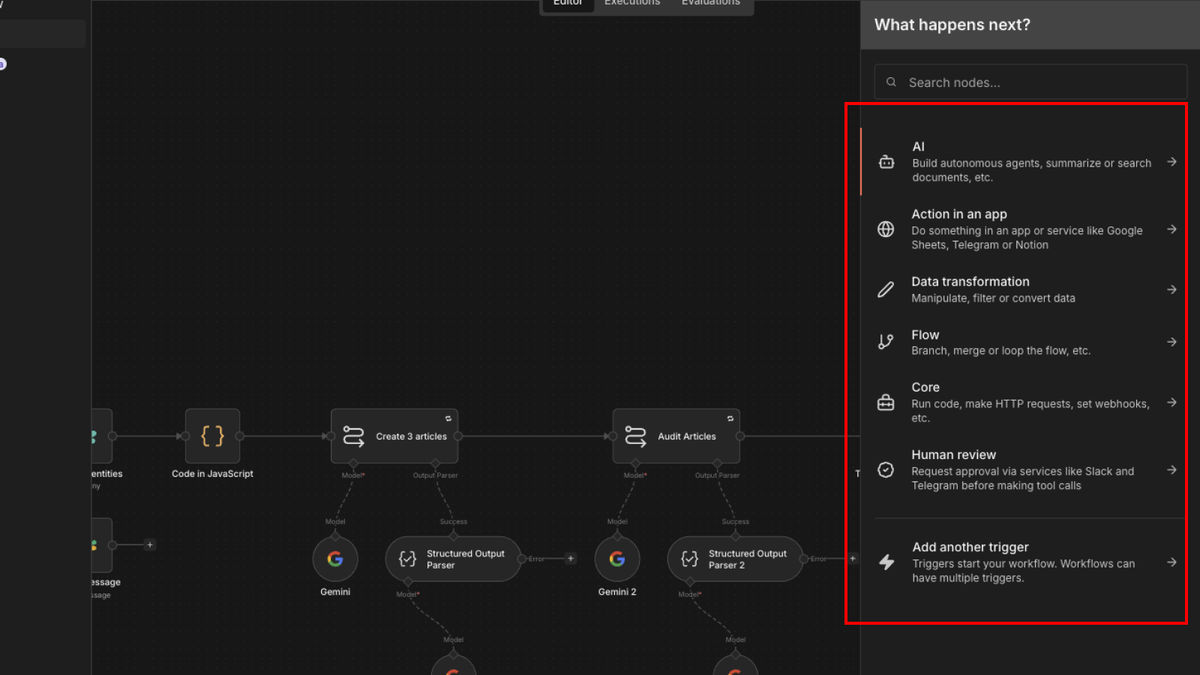
The Essential n8n Nodes List
To build effective automated workflows, you must know your core tools. Below is a comprehensive n8n nodes list separated by primary function. We test these daily to ensure they perform reliably under heavy commercial workloads.
Webhook
This trigger node receives incoming data payloads from external applications, initiating workflows based on real-time events.
Schedule
The Schedule node allows you to run workflows automatically at predefined intervals or specific times, perfect for recurring tasks.
HTTP Request
This powerful action node enables direct API calls to any web service, facilitating integration with virtually any platform.
Switch
The Switch node routes data through different workflow branches based on strictly defined conditions, enabling conditional logic.
Merge
The Merge node combines multiple incoming data streams into a single output, useful for consolidating information from various sources.
Split Batch
This node divides a single data item containing multiple sub-items into individual items, allowing for separate processing of each element.
Item Lists
The Item Lists node provides tools to manipulate lists of items, such as adding, removing, or sorting elements within your data.
Code
For advanced data manipulation and custom logic, the Code node allows you to execute custom JavaScript directly within your workflow.
Function
Similar to the Code node, the Function node transforms data using a custom JavaScript function, ideal for specific data transformations.
If
The If node conditionally executes different branches of a workflow based on a true/false condition, guiding data flow intelligently.
Loop
The Loop node iterates over a list of items, processing each one individually, which is essential for handling collections of data.
Wait
This node pauses workflow execution for a specified duration or until a certain condition is met, useful for rate limiting or timed operations.
NoOp
The NoOp (No Operation) node serves as a placeholder or for debugging, allowing you to pass data through without any modification.
Log
The Log node outputs data to the console or a log file, providing valuable insights for debugging and monitoring workflow execution.
Error Trigger
This node catches errors from previous nodes, allowing you to define specific error-handling workflows to manage unexpected issues gracefully.
Respond to Webhook
When a workflow is initiated by a Webhook, this node sends a custom response back to the calling service, confirming receipt or providing data.
Google Sheets
The Google Sheets node enables interaction with Google Sheets, allowing you to read, write, update, or delete data in your spreadsheets.
Email (SMTP)
Use the Email (SMTP) node to send emails via an SMTP server, facilitating notifications and communication directly from your workflows.
Telegram
The Telegram node allows you to send messages, interact with groups, or automate tasks within the Telegram messaging platform.
Slack
Integrate with Slack using this node to post messages, create channels, or manage user interactions within your Slack workspaces.
HubSpot
The HubSpot node connects to your HubSpot CRM, enabling automation of tasks like managing contacts, deals, and marketing activities.
PostgreSQL
Interact with PostgreSQL databases using this node to execute queries, retrieve data, or perform database operations directly.
Convert to JSON
The Convert to JSON node transforms various data formats into a standardized JSON structure, essential for data interoperability.
Convert to CSV
This node converts data into the Comma Separated Values (CSV) format, commonly used for spreadsheet and database imports/exports.
Extract Data from HTML
The Extract Data from HTML node parses HTML content to extract specific elements or data using CSS selectors or XPath expressions.
Extract Data from PDF
This node extracts text or structured data from PDF documents, useful for automating processes involving document analysis.
Delay
The Delay node introduces a pause in the workflow execution for a specified amount of time, helping to manage rate limits or sequential operations.
Merge by Key
This node merges items from two inputs based on a common key, allowing you to combine related data from different sources.
Sort
The Sort node arranges items based on specified criteria, such as alphabetical order or numerical value, to organize your data.
Deduplicate
Use the Deduplicate node to remove duplicate items from a list, ensuring data uniqueness and cleanliness in your workflows.
Aggregate
The Aggregate node groups and aggregates data based on certain fields, performing operations like sum, count, or average on grouped items.
For the full list and explanation of the nodes, please refer to the official n8n documentation.
Mastering the HTTP Request Node
Many users actively search for a reliable n8n HTTP request node tutorial because it is so incredibly powerful. This tool allows you to connect to absolutely any service that features a public API. You are never limited to the pre-built integrations available in the library.
To use it properly, you select the correct HTTP method like GET or POST. Then, you paste the target URL and add your necessary authentication headers. Finally, you map the incoming JSON data to send the exact payload required by the remote server.
Bringing Intelligence to Workflows
Modern workflow automation relies heavily on artificial intelligence to process complex tasks. The recent introduction of dedicated n8n AI nodes has completely changed how we handle unstructured data daily. You can now categorize long emails, summarize dense text, or extract specific entities automatically.
OpenAI integration
If you want to build intelligent conversational agents, you might need an n8n OpenAI integration. Connecting this service requires dropping the specific AI model component onto your canvas first. You then provide your secure API key and link it directly to a memory module and a prompt configuration tool. You can choose from various AI models: OpenAI is just one of the many.
These advanced tools allow you to create custom chatbots in just a few minutes. By combining standard logical routing with intelligent processing, your workflows become incredibly resilient. You can successfully handle edge cases that previously required direct human intervention.
Scaling Your Automated Operations
Once you master the basics, you will naturally want to run hundreds of executions per hour. Optimization then becomes your primary focus as a developer. Removing unnecessary steps reduces server load and significantly improves execution time.
Instead of pulling all historical records from a database, filter them actively at the source. Pass only the strictly required fields through your active workflow. Small efficiency gains compound massively when running continuous background schedules.
Final Thoughts on Automation
This software platform offers an incredible balance of visual simplicity and deep code-level control. Mastering the concepts outlined here gives you a massive advantage in the modern workplace. You can confidently build systems that rival expensive enterprise software suites.
We highly recommend setting up a local test environment today. Practice connecting different services and routing simple text payloads across your canvas. Hands-on experience is the absolute best way to learn these concepts permanently.
If you would like to get started with n8n right away, we recommend Docker. Check out our tutorial on the topic.

