



What is Descript?
Descript is an innovative AI video editor that transcribes your media into a document. From there, you edit the video simply by editing the text - delete a sentence, and the footage instantly disappears! Packed with powerful Descript AI features like voice cloning and audio enhancement, it scales your content effortlessly. That might sound strange, or even overwhelming at first. But our team members have spent many hours using this tool and writing this comprehensive Descript AI tutorial, so you have all the tools to master it.
Setting Up for Success: Your First Project
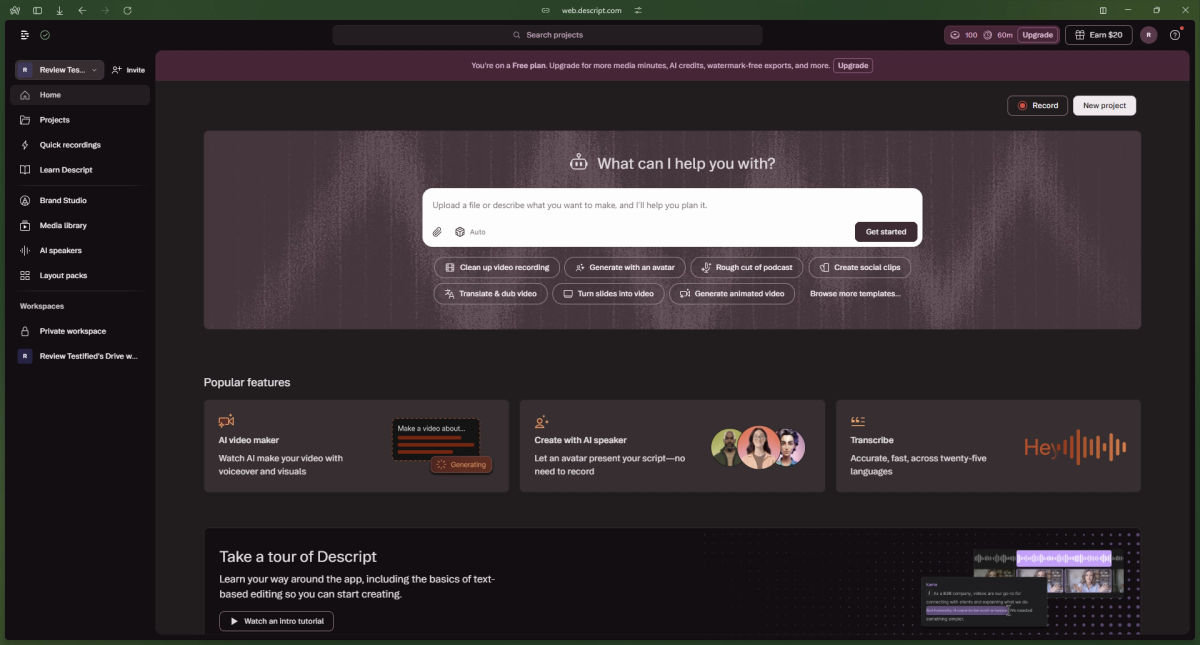
Learning how to use Descript optimally starts with understanding its workspace. When you first open the application (or the web browser version), you will be greeted by a clean, document-like interface.
Step 1: Importing and Transcribing
To begin, click "New Project" and drag and drop your video or audio file directly into the central window. Descript will immediately begin processing the file.
Speaker Detective: The AI will ask you to identify the speakers. It analyzes the voices and automatically labels who is talking throughout the transcript.
Transcription Accuracy: As of 2026, Descript’s transcription engine boasts around 95% accuracy in over 20 languages.
Step 2: Navigating the Interface
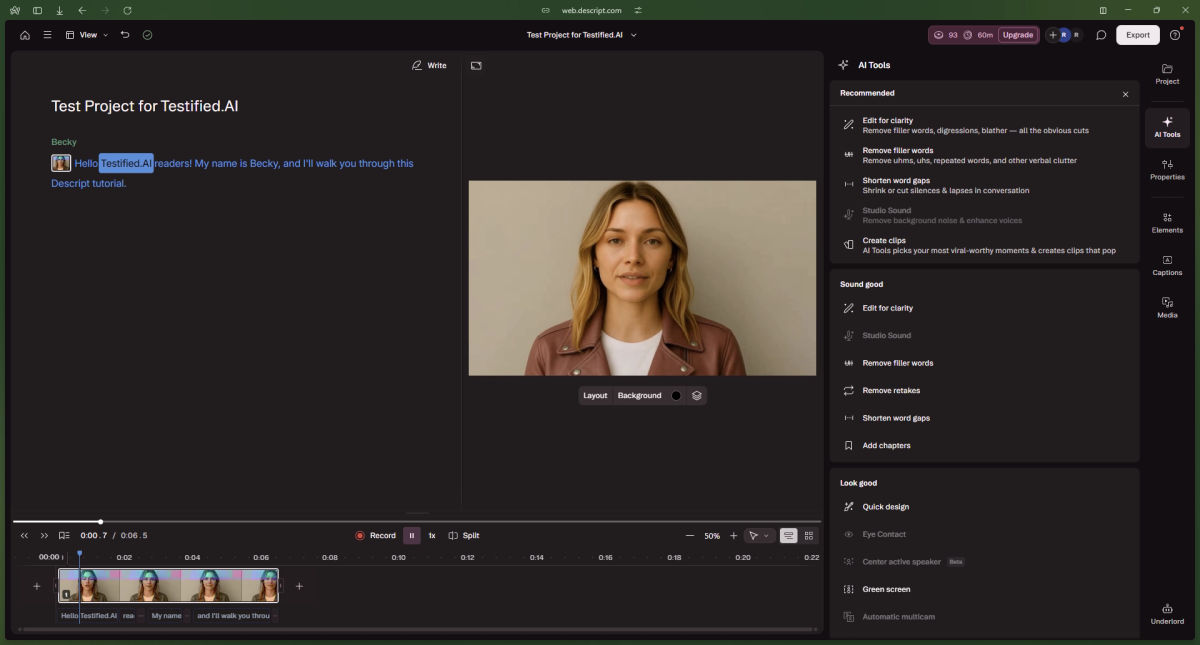
The layout is divided into three primary zones:
The Script (Left/Center): This is your main workspace. It looks just like a word processor.
The Canvas (Top Right): This is your video playback monitor where you can adjust visual elements, resize clips, and add text.
The Properties Panel (Far Right): Here, you control the details—color correction, audio levels, visual effects, and AI settings for whatever element you currently have selected.
The Core Workflow: Text-Based Video Editing
The magic of this AI video editor lies in its simplicity. You don't need to learn complex keystrokes or understand ripple deletes to make basic cuts.
Making Cuts and Adjustments
Read through your transcript. When you find a mistake, a tangent, or a bad take, simply highlight the text and press the Delete or Backspace key. The text disappears, and the underlying video and audio are seamlessly cut.
If you want to rearrange the order of your video, highlight a paragraph, cut it (Ctrl/Cmd + X), and paste it (Ctrl/Cmd + V) somewhere else in the script. The video segments will instantly reorder themselves to match your text document.
Correcting the Transcript
Sometimes the AI might mishear a word (for example, transcribing "Descript" as "Describe"). You do not want to delete the video; you just want to fix the text. Highlight the incorrect word, press the C key (for Correct), and type the right word. This fixes your transcript for exporting accurate subtitles later without altering the actual media.
Unleashing Descript Underlord: Your AI Co-Editor
In recent updates, Descript introduced Underlord, a comprehensive AI assistant designed to handle the tedious aspects of post-production. Mastering Descript Underlord is crucial for optimizing your workflow.
How to Remove Filler Words AI
One of the most popular Descript AI features is its ability to clean up your speech.
Click on the Underlord icon (usually located at the top of the interface).
Select Remove Filler Words.
The AI will scan your entire project for "ums," "uhs," "likes," and "you knows."
You can choose to review them one by one or click Remove All to instantly tighten your pacing. The cuts are remarkably smooth, making you sound infinitely more confident and articulate.
Shortening Word Gaps
Dead air can kill listener retention, especially in AI podcasting. Through the Underlord menu, you can select "Shorten Word Gaps". Tell the AI to find any silence longer than 2 seconds and automatically reduce it to 0.5 seconds. This keeps your content moving at a crisp, professional pace without manual trimming.
Professional Audio and Visual AI Features
To truly use Descript professionally, you need to move beyond basic cutting and utilize its restorative and generative tools.
Studio Sound: Instant Audio Magic
Achieving professional audio traditionally requires expensive microphones and heavy acoustic treatment to maintain a high signal-to-noise ratio (SNR) - the technical measure of your voice's clarity compared to unwanted background interference. If your raw recording suffers from a poor SNR, excessive room echo, or the hollow sound of an untreated physical space, you do not necessarily need to re-record.
By clicking your audio track and toggling on Studio Sound in the properties panel, Descript uses regenerative AI to digitally isolate your vocal frequencies. It strips away the ambient room tone and reconstructs the audio profile to mimic the acoustic environment of a professional broadcasting studio, rescuing otherwise unusable audio.
Regenerate and AI Voices (Overdub)
Have you ever finished a perfect take only to realize you misspoke a crucial word? Traditionally, you would have to set up your camera and microphone again for a reshoot. In Descript, you can use the Regenerate feature.
Highlight the incorrect word in the transcript.
Type the correct word you meant to say.
Select "Regenerate". Descript will use an AI clone of your voice to synthesize the new word, seamlessly blending it into your audio track. It will even subtly adjust your mouth movements in the video to match the newly generated audio.
Visual Polish: Eye Contact and Green Screen
Eye Contact: If you recorded your video while reading a script off to the side, your audience will notice. Toggle on the Eye Contact feature, and the AI will subtly redirect your pupils to look directly into the camera lens, creating a deeper connection with your viewers.
Green Screen: Remove your background with one click, without actually owning a green screen. You can then replace it with a solid color, a professional office image, or AI-generated B-roll.
Elevating Content with AI Video Generation
As an advanced AI video editor, Descript now integrates top-tier generation models (like Veo and Nano Banana) directly into the platform.
If you are talking about a specific concept and need B-roll, simply highlight the text, click the media button, and prompt the AI to generate a video clip (e.g., "Cinematic slow-motion shot of coffee pouring"). The AI will generate the footage and perfectly time it to your spoken words. You can also generate completely custom AI Avatars to speak your script if you prefer not to be on camera at all.
Remote Recording and AI Podcast Editing
For podcasters, Descript offers Descript Rooms, a feature allowing you to record remote interviews with up to 10 guests. It records high-quality audio and video locally on each participant's computer, meaning internet lag won't ruin your footage.
Once the interview is over, it instantly imports into your timeline. AI podcast editing shines here: Descript's Automatic Multicam feature will read the transcript, recognize who is speaking, and automatically switch the camera angle to the active speaker, completely automating what used to be a grueling multi-track editing process.
Formatting, Exporting, and Repurposing
A professional content creator knows that one video is never just one video. It needs to be repurposed for YouTube, TikTok, LinkedIn, and Instagram.
Scenes and Layouts
Descript uses a concept called "Scenes" (indicated by a / in the transcript) to break up your video visually without breaking the audio flow. You can apply different visual layouts to different scenes. For example, Scene 1 might be a full-screen shot of you, Scene 2 might feature a side-by-side layout with your guest, and Scene 3 might display screen-shared footage.
Quick Design and Subtitles
Captions are mandatory for social media. In Descript, you can add dynamic, animated captions with two clicks. Underlord’s Quick Design feature can also automatically format your video into a 9:16 vertical ratio, add engaging subtitles, and suggest the most viral moments of your long-form video to clip out for YouTube Shorts or TikTok.
Exporting
When you are ready, click "Publish." You can export your project as a high-resolution MP4 (up to 4K), an audio-only WAV/MP3 file, or even just export the transcript as a document for your blog. Descript also supports timeline exports to traditional Non-Linear Editors (NLEs) like Premiere Pro or Final Cut if you need to hand the project off to a Hollywood-level colorist or VFX artist.
Summary Table: Descript Capabilities at a Glance
Feature Category | Key Tools | Best For |
Core Editing | Text-Based Editing, Speaker Detective, Scenes | Cutting down rough footage fast. |
AI Cleanup | Underlord, Remove Filler Words, Shorten Gaps | Tightening pacing and removing "ums". |
Audio Polish | Studio Sound, Regenerate (Voice Cloning) | Fixing bad mics, correcting misspoken words. |
Visual Enhancement | Eye Contact, Green Screen, AI Video/Image Gen | Adding B-roll, fixing eye lines, and replacing backgrounds. |
Podcasting | Descript Rooms, Automatic Multicam | Remote interviews, automated angle switching. |
Closing Thoughts
Mastering this Descript AI Tutorial is one of the highest-leverage skills a modern content creator or business professional can develop. By shifting the paradigm from timeline-scrubbing to text-based video editing, Descript removes the technical friction that often prevents great ideas from being published. Whether you are launching an AI podcast editing workflow, fixing audio with Studio Sound, or relying on Descript Underlord to clean up your filler words, this tool empowers you to focus on what actually matters: your message and your creativity.