



What is Kling 3.0?
Kling 3.0 is a state-of-the-art, multimodal AI video generator developed by Kuaishou. It is designed to transform text prompts, reference images, and video inputs into high-fidelity, cinematic sequences. Unlike earlier generation models that struggled with temporal stability and short runtimes, the Kling 3.0 video generator is built for continuous, narrative storytelling.
It introduces a unified training framework that merges visual and audio generation natively. This means that instead of generating a silent video and dubbing it later, Kling 3.0 generates the visuals, ambient sound effects, and character dialogue simultaneously. Furthermore, the platform features a built-in "AI Director," capable of rendering up to 15 seconds of continuous footage that includes complex, automatic camera angle changes - such as shot-reverse-shot compositions - within a single prompt. From marketing agencies generating product commercial sets to independent creators producing short films, Kling 3.0 serves as a comprehensive virtual production studio. We use it for our own commercials at testified.ai too, and we can honestly say it's one of the best AI filmmaking tools in 2026.
The Evolution of Video Generation: Why 2026 is Different
To understand how to use Kling AI effectively, it is crucial to recognize how the technology has evolved. Earlier models (including version 2.6 and competitors like Veo) required painstaking workarounds. Creators had to generate dozens of individual shots, rely on third-party voiceover software, and use separate tools to forcefully blend faces to maintain character continuity.
The 2026 update directly addresses these historical pain points through three major technological pillars:
Unified Multimodal Processing: Audio and video are no longer separate layers; they are generated by the same neural network, ensuring frame-accurate synchronization.
Semantic Pacing Control: The AI understands cinematic timing. If you prompt a "slow reveal," the model paces the 15-second generation to build tension, rather than rushing the movement in the first three seconds.
Element Binding: The system can lock specific data points (like a character's face or a specific branded product) into its memory, recalling them perfectly from shot to shot.
Interface Mastery and Preparation
Before diving into our Kling 3.0 tutorial with complex prompting, professional users must optimize their workspace and understand the fundamental tools available on the dashboard.
Navigating the Dashboard
When you log into the platform, you are presented with several core modules:
Text-to-Video: The foundation of the platform, used for building scenes entirely from scratch using descriptive language.
Image-to-Video: Used for animating static assets, offering the highest degree of initial compositional control.
Kling 3.0 Omni: The advanced post-production and VFX suite for editing existing videos.
Elements Library: Your personal database of locked characters, products, and styles.
Setting Up for Success
Professionals do not rely on trial and error; they use deliberate settings. Always ensure your output resolution is set to at least 1080p and select the 16:9 aspect ratio for traditional cinematic viewing, or 9:16 for social media platforms. Be mindful of your credit consumption; native audio generation and multi-shot features will consume credits faster than standard text-to-video generations.
Structuring the Perfect Prompt
The secret to mastering this Kling 3.0 tutorial lies in semantic precision. The AI does not guess your creative intent; it executes your written instructions literally. A professional prompt should follow a strict hierarchy to ensure the model prioritizes the most important visual elements first.
The Anatomy of a Professional Prompt
To yield the best results, structure your text inputs using the following formula:
Cinematography / Camera Shot: Define the lens, framing, and movement (e.g., Ultra-wide establishing shot, slow drone push-in).
Subject Description: Be specific about the character or object (e.g., A man in his 40s wearing a tailored charcoal suit).
Action / Motion: Describe exactly what the subject is doing (e.g., sitting at a mahogany desk, slowly drinking from a coffee cup).
Environment / Background: Paint the scene (e.g., a dimly lit corporate office with rain hitting the floor-to-ceiling windows).
Lighting and Aesthetics: Define the mood (e.g., high-contrast cinematic lighting, cold blue tones, neon city reflections).
Audio Design (If applicable): Dictate the soundscape (e.g., ambient rain sounds, deep rumbling thunder, distant sirens).
Example of an Optimized Prompt:
Medium close-up shot, static camera. A young woman with short red hair and a yellow raincoat stands looking directly at the lens. She slowly raises her hand to shield her eyes from a bright light. Background is a crowded cyberpunk street market. Cinematic lighting, volumetric fog, neon pink and cyan color grading. Ambient street noise, sizzling food, heavy synthesized bass hum.
Achieving AI Character Consistency
One of the most celebrated advancements in the Kling 3.0 video generator is the ability to maintain the same subject across different environments and camera angles. This solves the morphing issue that plagued earlier AI filmmaking tools.
Using the Elements Feature
To maintain AI character consistency, you must utilize the "Elements" workflow rather than relying purely on text descriptions.
Create Your Element: Navigate to the Elements tab. You can either upload a clear reference photo of a person/product or generate a new character directly within the platform using a detailed prompt.
Bind the Subject: Once the image is approved by the system, save it as a named Element (e.g., "Main Actor John").
Apply to Generation: When moving to the Text-to-Video or Image-to-Video interface, click the "Add Element" button and select your saved subject.
Prompt for Action: In your text prompt, simply refer to the subject (the system will automatically map the Element's visual data to the subject in your prompt).
Pro Tip: For perfect consistency, ensure your reference Element image has neutral, flat lighting. If you upload a reference image with harsh red lighting, the AI may struggle to place that character in a brightly lit daylight scene.
You can create your own characters after navigating to Principal Assets in the Assets menu.

Mastering Kling AI Multi-Shot Generation
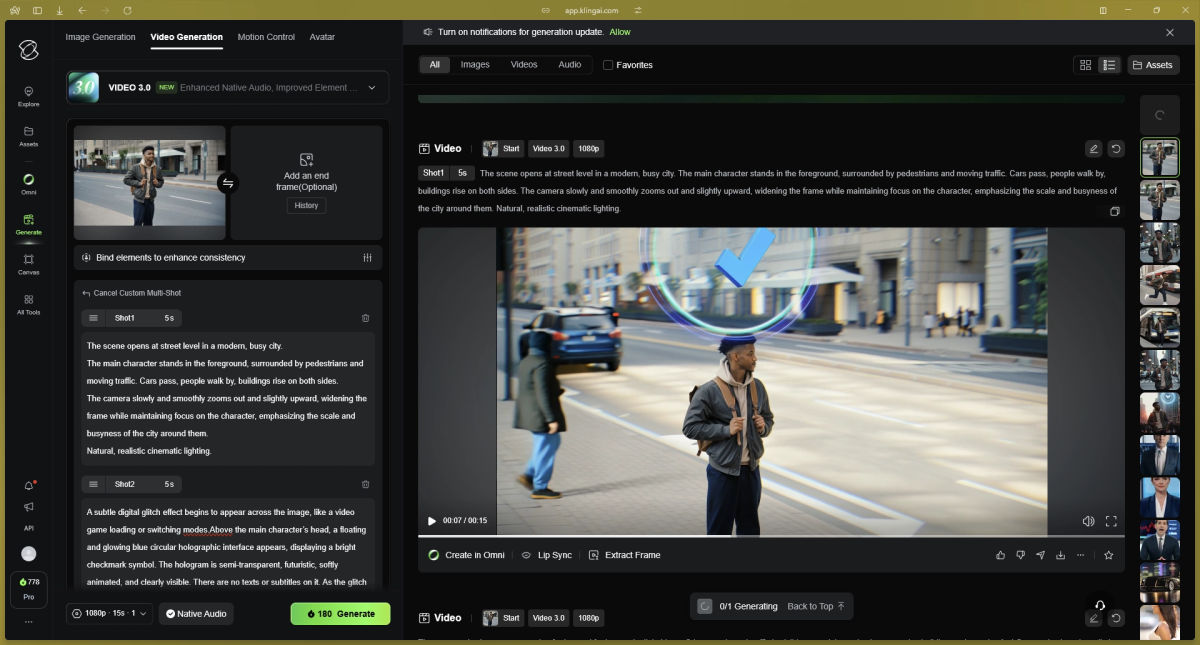
Previously, creating a sequence with a wide establishing shot, a medium shot, and a close-up required three separate prompts and external video editing software. The Kling AI multi-shot generation feature acts as a built-in AI Director, handling the cutting for you.
How to Use the AI Director
When setting up your generation, toggle the "Multi-Shot" feature on. You can allow the AI to automatically determine the best camera angles based on your text, or you can use "Custom Multi-Shot" for precise control. Automatic multi-shot is a very useful feature when you feel like you're out of ideas. We have used this many times in our video generations, and it has given us fantastic camera angles and inspiration.
Workflow for Custom Multi-Shot:
Shot 1 (0-5 seconds): Wide tracking shot of a car driving down a desert highway.
Shot 2 (5-10 seconds): Close-up shot of the driver's hands gripping the steering wheel.
Shot 3 (10-15 seconds): Aerial drone shot pulling away from the car as it approaches the mountains.
The AI will intelligently stitch these shots together, ensuring that the color grading, lighting, and pacing remain perfectly uniform across the transition points. This effectively allows you to generate a fully edited 15-second commercial in a single click.
Implementing Kling 3.0 Native Audio and Lip Sync
The transition from silent films to talkies has officially hit the AI space. Kling 3.0 native audio allows for the generation of sound effects, ambient noise, and bilingual character dialogue perfectly synced to mouth movements.
Directing Audio and Dialogue
To utilize this feature, you must explicitly include audio cues within your prompt.
For Sound Effects: Use descriptive audio keywords at the end of your prompt. Words like rustling, heavy footsteps, muffled wind, and sharp metallic clank are interpreted by the audio engine to generate a synced foley track.
For Dialogue: If you want a character to speak, enclose their dialogue in quotation marks within the prompt and specify the delivery tone.
Example: The man looks at the camera and says angrily, "I told you never to come back here."
Handling Multi-Character Dialogue:
Kling 3.0 can process interactions between multiple people. When prompting for an interview or conversation, define the alternating speakers clearly.
Two people sitting across a table. Camera alternates focus. The woman says calmly, "This is the final offer." The man sighs, shakes his head, and replies, "It's not enough." Accurate lip-sync, subtle facial micro-expressions.
Advanced Post-Production with the Kling 3.0 Omni Guide
Even with perfect prompting, you may need to make localized adjustments to your generated video. This is where the Kling 3.0 Omni guide comes into play. The Omni tool suite is the platform's dedicated VFX and editing bay.
Key Omni Features and How to Use Them
Video Inpainting (Object Replacement): If a generated video is perfect, but there is an unwanted artifact in the background, use the Omni masking brush. Highlight the unwanted object, and type a prompt to either remove it or replace it (e.g., replace coffee cup with a glass of water).
Style and Era Transfer: You can upload an existing video and use Omni to completely alter its aesthetic without changing the core motion. You can prompt Omni to change a modern street scene into a "1920s noir film" or transfer the color grade of a specific reference image onto your generated video.
Motion Control: If you have an image of a character and want them to perform a highly specific action (like a complex martial arts kick), you can upload a reference video of a real human doing the kick. Omni will extract the skeletal motion data and apply it to your static image.
Comparing Model Capabilities: 2.6 vs 3.0
Curious Refuge, arguably the most authoritative educational hub for AI filmmaking in 2026, recently called Kling 3.0 "The New King of AI Video Generators". To highlight why updating your workflow to the 3.0 standard is essential, here is a quick breakdown of how the current model supersedes its predecessor.
Feature / Capability | Kling 2.6 | Kling 3.0 | Professional Impact |
Maximum Duration | Up to 5 Seconds | Up to 15 Seconds | Enables long-form narrative pacing and complex actions. |
Multi-Shot Direction | Manual editing only | Automated AI Director | Kling AI multi-shot generation saves hours of post-production assembly. |
AI Character Consistency | Moderate (Drifting) | High (Elements Lock) | Allows for true brand and character continuity. |
Audio Generation | Basic ambient generation | Native synced Audio & Voice | Kling 3.0 native audio eliminates the need for third-party lip-sync software. |
Language Support | English primarily | Bilingual / Multilingual | Expands content reach for global marketing. |
Closing Thoughts
Learning how to use Kling AI in its 3.0 iteration is less about typing magic words and more about adopting the mindset of a film director. By leveraging the Elements feature for unshakeable character consistency, orchestrating multi-shot sequences, and utilizing the native audio engine, you can bypass the fragmented workflows of the past. As AI filmmaking tools in 2026 continue to mature, those who master the structural, deliberate prompting techniques outlined in this guide will be the ones creating truly compelling, cinematic, and professional-grade content.