



What is Make.com?
Make.com is a visual, no-code business automation tool that connects thousands of apps to eliminate manual data entry. Today, it has evolved into a powerful orchestration platform, allowing anyone to easily build enterprise-grade AI automations using native AI Agents.
Make.com vs Zapier: Choosing Your Engine
When diving into the topic of Make.com for beginners, the most common question is how it compares to its main competitor, Zapier. While both are exceptional platforms, they serve slightly different needs.
Ultimately, in the Make.com vs Zapier debate, Make wins for users who want to scale their operations affordably and visually manage complex, AI-driven architectures.
Phase 1: Make.com for Beginners (Getting Started)
Before building your first project with our Make.com tutorial, you need to understand the environment. Just like with most AI tools, creating an account is free and does not require a credit card.
The Dashboard and Scenario Canvas
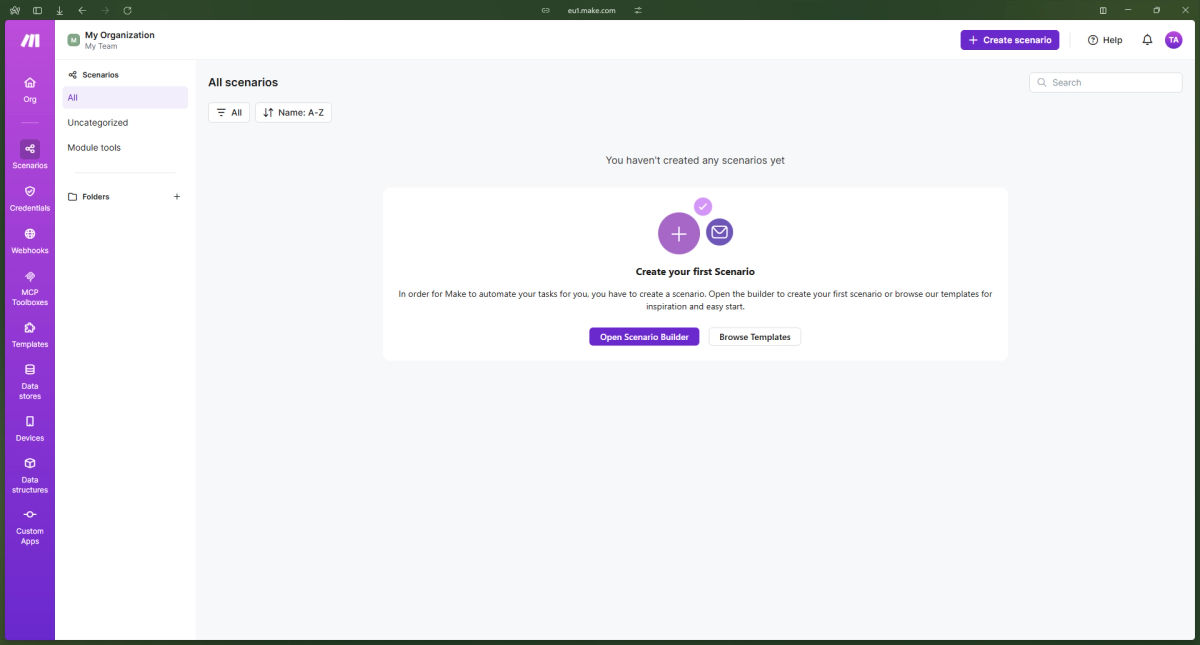
Once you log in, you will be greeted by the Make Dashboard. This is your command center, displaying your operation usage (credits), active scenarios, and overall health of your automations.
To start building, click "Scenarios" and "Open Scenario Builder". This opens the visual canvas - a blank workspace where you will drag, drop, and connect your apps.
The Core Vocabulary
To follow this Make.com tutorial, you must master the terminology:
Scenario: A single automated workflow (e.g., "Save email attachments to Google Drive").
Module: A single step within a scenario representing an app (e.g., Gmail, Slack, OpenAI).
Trigger: The first module in a scenario. It watches for a specific event to start the automation (e.g., "Watch for new rows in Google Sheets"). Triggers can be scheduled (running every 15 minutes) or instant (webhooks).
Action: A module that executes a task based on the trigger's data (e.g., "Send a Slack message").
Mapping: The process of dragging data variables from a previous module into the fields of a current module.
Pro Tip: Always name your scenarios and add visual notes to your canvas. When you revisit an automation six months later, you will thank yourself for the documentation.
Phase 2: Building Your First Workflow Automation
Let’s build a classic workflow: When a client fills out a Google Form, send their data to a Google Sheet and notify the team on Slack.
Add the Trigger: Click the giant + on the canvas. Search for "Google Forms" and select the "Watch Responses" trigger. Connect your Google account and select your specific form.
Add the First Action: Hover over the Google Forms module, click the + icon to add the next step. Search for "Google Sheets" and select "Add a Row."
Map the Data: Click into the Google Sheets module. You will see a panel where you can match the columns in your spreadsheet to the answers from the Google Form. Drag and drop the dynamic data bubbles (like "First Name" or "Email") into the corresponding fields.
Add the Second Action: Add another module for "Slack" and choose "Create a Message". Map the client's name and inquiry into the message text box so your team gets a customized alert.
Test and Activate: Click the "Run once" button at the bottom left. Fill out your Google Form manually. Watch the data visually flow through the bubbles on your screen. If successful, turn the scheduling switch to "ON."
You have just built a foundational business automation tool for your operations!
Phase 3: Advanced Logic (Filters, Routers, and 2026 Features)
To make your automations truly intelligent, you cannot rely on straight lines. You need logic.
Filters: Click the dotted line connecting two modules to set up a filter. This stops the workflow unless specific conditions are met (e.g., only continue if the form's "Budget" field is greater than $1,000).
Routers: A router splits your automation into multiple paths. For example, Path A handles support tickets, while Path B handles sales inquiries.
If-Else & Merge Modules (New in 2026): Make now allows you to split logic cleanly and then merge it back into a single route later in the scenario, vastly reducing visual clutter and module duplication.
Subscenarios: You can now turn a scenario into a reusable function. If you have a complex data-formatting sequence you use often, save it as a subscenario and call it from any other workflow.
Phase 4: How to Integrate AI with Make
This is where the magic happens. Moving data is great, but analyzing and generating data autonomously is transformative. You can integrate AI with Make using native modules for OpenAI (GPT-4o, GPT-5 series), Anthropic (Claude 3.5/4.6), or Google Gemini (including the Gemini 3.1 Pro model).
Example: Automated Customer Sentiment Analysis
Trigger: Watch for new Zendesk or Intercom tickets.
AI Action: Add the "OpenAI" module and select "Create a Chat Completion".
Prompt Engineering: In the prompt field, type: "Analyze the following customer support ticket and determine if the sentiment is Positive, Neutral, or Angry. Only return one of those three words. Ticket text: [Map the ticket content here]".
Router: Add a router after the AI module.
Path 1 (Angry): Filter for the word "Angry". Send a high-priority Slack alert to the Customer Success Manager.
Path 2 (Neutral/Positive): Filter for "Neutral" or "Positive". Route the ticket to the standard support queue.
The 2026 Game Changer: Make AI Agents & MCP
In 2026, Make introduced native AI Agents that live directly inside the scenario builder. Instead of hardcoding every single step, you can give an Agent a goal (e.g., "Research this company and summarize their recent news") and provide it with "Tools" (other Make modules, like a web scraper or an email finder). The Agent features a "Reasoning Panel" that shows you exactly why it chose certain tools, providing total transparency.
Furthermore, using MCP Toolboxes (Model Context Protocol), you can connect external AI interfaces (like ChatGPT) directly to your Make scenarios, turning your visual workflows into executable skills for your AI.
Phase 5: How to Build and Sell Automations
Once you master AI automations, you possess a highly lucrative skill. Many businesses know they need AI, but have no idea how to implement it. Here is how you can build and sell automations as a consultant or agency:
Identify the Bottlenecks: Don't sell "Make.com scenarios." Sell solutions. Approach real estate agents, e-commerce store owners, or marketing agencies and ask what tasks take up the most manual hours.
Productize Your Services: Create standardized offerings. For example:
The Lead Machine: An automation that scrapes leads, enriches their data via AI, and drafts personalized cold emails (Setup fee: $1,500).
The AI Support Rep: A custom AI Agent hooked into their knowledge base that drafts perfect support replies (Setup fee: $2,500 + monthly retainer).Use the Make Managed Service: In 2026, Make offers tools for multi-organization management. You can build scenarios in your own workspace and securely deploy them to your clients' accounts, maintaining control and offering ongoing maintenance contracts.
Show, Don't Tell: Because Make is visual, record a Loom video showing the data flowing through the bubbles. It is incredibly satisfying for a client to literally see the software doing the work of three employees in seconds.
Conclusion
Mastering Make.com is no longer just about saving a few minutes of copy-pasting; it is about engineering scalable, intelligent systems. By combining basic workflow routing with the advanced reasoning of modern AI models, you can build autonomous engines that drive real business value. Start small, map your processes visually, and don't be afraid to experiment with the AI Agent capabilities. The future of work is automated, and with Make, you hold the blueprints.